

3️⃣ Distribute app
Once your EasyStore App is ready, choose how merchants will get it:
| Option | Best for | Review needed? |
|---|---|---|
| Private share by link | Your own clients, or apps built for specific stores | No |
| Publish on the EasyStore App Store | Apps meant for every EasyStore merchant | Yes |
💡 Building an app for private use? If you don't plan to publish it on the EasyStore App Store, you don't need to go through the review process. Just share the app link with the stores that need it.
Partner app or custom app?
There is a third way to connect a store to the EasyStore API: a custom app, which a merchant creates inside their own
store's admin. All three call the same API with the same EasyStore-Access-Token header. They differ in
where the app is created, how the token is issued and how many stores can use it.
| Partner app, App Store |
Partner app, private link |
Custom app | |
|---|---|---|---|
| Created in | Partner Dashboard, by a developer or agency | The store's admin panel, Apps → Develop custom app, by the merchant | |
| Stores | Any store, from the App Store | Any store you send the link to | Only the store that created it |
| How the token is issued | OAuth: the merchant approves scopes, then your Redirection URL exchanges a code for a token. Each store gets its own token. | Shown on the custom app page. No OAuth. | |
| What you build | A web service with an App URL, a Redirection URL and HMAC verification | Only the code that calls the API. If you use webhooks, also a public HTTPS webhook handler with HMAC verification. | |
| UI inside the admin panel | Yes, your App URL can be embedded in the admin | No | |
| Changing scopes | Your app requests new scopes and the merchant approves them | The merchant ticks or unticks scopes on the custom app page | |
| Review | Yes | No | No |
Choose a custom app if the integration is for one store and the merchant can create it in their admin. Choose a Partner app if more than one store will install it, it needs its own screen inside the admin, or it will be listed on the App Store.
🔁 Coming from Shopify? The names don't match. Shopify's custom distribution is our private share by link. Our custom app is like Shopify's admin-created custom app.
Private share by link
If your app is for a private client, or was built for specific EasyStore stores, share your app link with them. The link opens your app's page, which has an Install button. Any store with the link can install the app. No review, approval or publishing is needed.
- Open your app's details page in the Partner Dashboard.
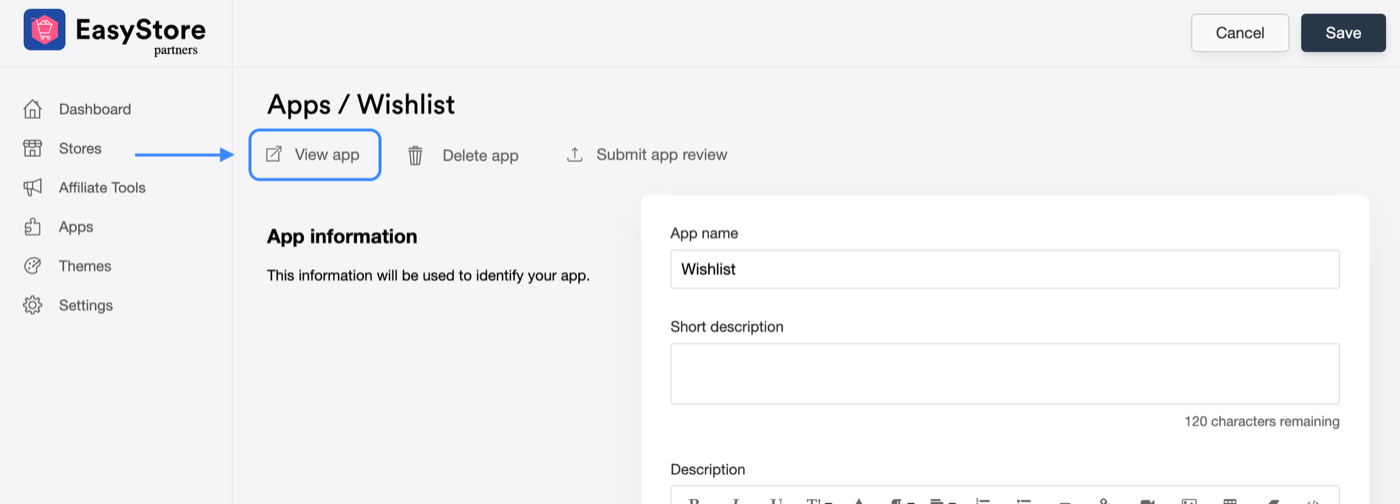
- Click View app at the top. This opens your app link.
- Copy the link and send it to your client, so they can install the app into their store.
Not the same as a custom app. A privately shared Partner app still installs through OAuth, and each store gets its own token. A custom app is created inside one store's admin and never has an install link. See Partner app or custom app?
⚠️ The link can't be limited to specific stores. Anyone who has it can install your app. To
allow only your clients, check the shop parameter against your own list when your App URL is
called, and show other stores a message instead of starting installation. Check it again at your Redirection
URL, after verifying the HMAC and before exchanging the code: the authorization URL is public, so someone can
skip your App URL and open it directly.
Publish on the EasyStore App Store
If your app is meant for every store on EasyStore, publish it on the EasyStore App Store, where it gains more exposure and can be installed by more merchants. Before it can be published, EasyStore reviews your app to check its installation, uninstallation and functionality.
What is the EasyStore App Store?
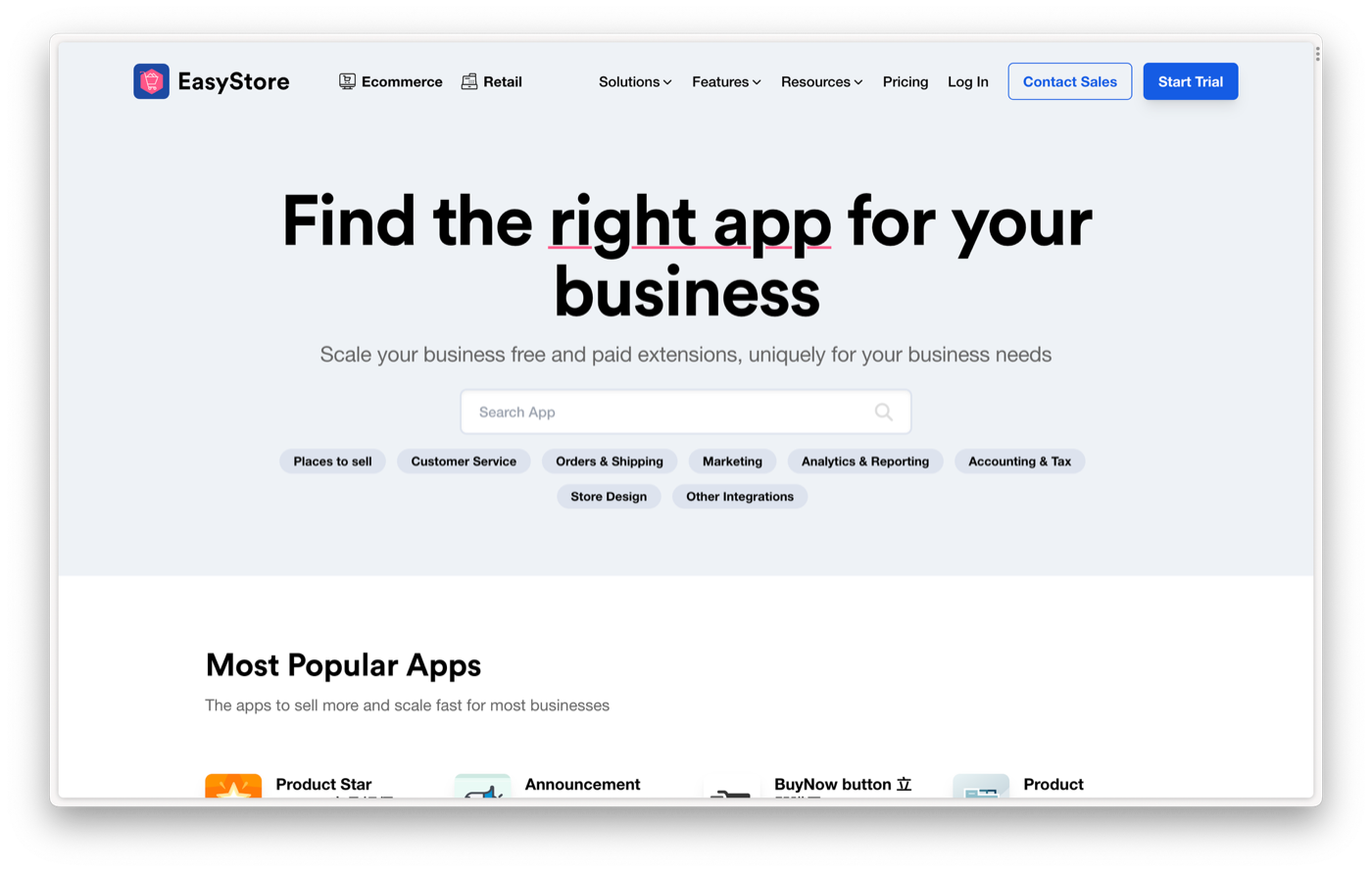
The EasyStore App Store is where EasyStore merchants browse and install apps for their stores, just like the Apple App Store, Google Play Store or Huawei AppGallery.
Charging merchants
EasyStore doesn't bill merchants for your app. If your app is paid, charge merchants through your own subscription or billing system, for example a sign-up and payment page on your website or inside your app's UI. Say how pricing works in your app's description, so merchants know before they install.
Publishing flow
- Prepare your listing. See the checklist below.
- Send your review materials to EasyStore by email.
- Submit the app for review in the Partner Dashboard. The status changes to Under review.
- EasyStore reviews the app. If anything else is needed, we reply to your email.
- Once approved, the status changes to Unpublished. Your app is approved but not live yet.
- Publish the app yourself by clicking Publish on app store. Your app is now live on the App Store.
Step 1: Prepare your listing
Make sure your app details page in the Partner Dashboard is complete:
- The app name is appropriate
- The short description clearly says what the app does
- The description gives merchants the essential details about the app
- The app has an icon (200 × 200px) and a banner (646 × 313px)
- The support URL points to a working support page
Also test the full flow on a development store. Use the go-live checklist.
Steps 2–4: Submit for review
Send your review materials
Email dev@easystore.co with the subject "EasyStore App Publish Application", including:
| Material | What to include |
|---|---|
| App description | A text description of what the app can do: its main features and how merchants use it |
| Demo video | A video showing how the app works, from installation to its main features |
| Testing account | Login details for your app (or service) that our reviewers can use to test it end to end |
Submit the app in the Partner Dashboard
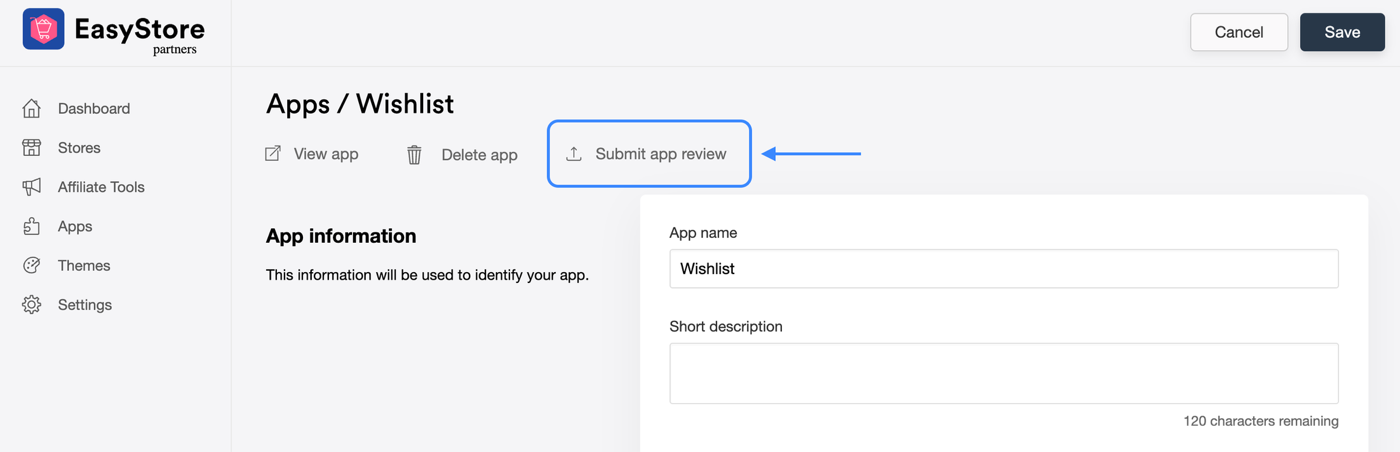
Send the email first. Then go to your app details page, click Submit app review, confirm that you have emailed your review materials, and submit. The app's status changes to Under review and EasyStore is notified.
If anything else is needed during the review, EasyStore will reply to your email.
Steps 5–6: Publish after approval
Approval doesn't publish your app automatically, so you control when it goes live. Check your app's status in the Apps list:
| Status | Meaning | What to do |
|---|---|---|
| Under review | EasyStore is reviewing your app | Wait, and watch your email for questions |
| Rejected | Your app needs changes before it can be approved | Make the requested changes, then click Submit app review again |
| Unpublished | Approved. Your app passed review, but isn't live on the App Store yet. | Click Publish on app store on the app details page |
| Published | Your app is live on the App Store | Nothing. To take it down, click Unpublish from app store |
📌 Note: merchants who already installed your app keep it after you unpublish. Unpublishing only removes the listing from the App Store.