

2️⃣ Develop app
Build the parts of your app that talk to EasyStore. By the end of this page, your app will have three handlers:
Verifies EasyStore's request and starts installation, or shows your UI
Exchanges the authorization code for an access token
Cleans up when a merchant uninstalls your app
App installation
EasyStore uses OAuth 2.0's Authorization Code Grant to let merchants grant the EasyStore App permission to read or write store data. If the merchant consents to the requested permissions, a permission-scoped access token is issued to the app. The token can access the permitted resources in the API.
The installation process uses the App URL and Redirection URL set up in the app details page in the Partner Dashboard. You might need to update them to your latest URLs before you start.
┌─────────────────────────────────────────────────────────────────────────────────────┐
│                                App Installation Flow                                │
└─────────────────────────────────────────────────────────────────────────────────────┘

 ┌────────────────┐    ┌────────────────┐    ┌────────────────┐    ┌────────────────┐
 │    Merchant    │    │   EasyStore    │    │    Your App    │    │    Your App    │
 │                │    │  Admin + API   │    │    App URL     │    │Redirection URL │
 └────────┬───────┘    └────────┬───────┘    └────────┬───────┘    └────────┬───────┘
          │                     │                     │                     │
          │ 1. Click Install    │                     │                     │
          │────────────────────►│                     │                     │
          │                     │ 2. GET App URL      │                     │
          │                     │    shop, host_url,  │                     │
          │                     │    timestamp, hmac  │                     │
          │                     │────────────────────►│                     │
          │                     │                     │ 3. Verify hmac,     │
          │                     │                     │    check shop,      │
          │                     │                     │    installed?       │
 ┈┈┈┈┈┈┈┈┈│┈┈┈┈┈┈┈┈┈┈┈ Already installed: show your app UI, stop ┈┈┈┈┈┈┈┈┈┈┈│┈┈┈┈┈┈┈┈┈
          │                     │ 4. Redirect to      │                     │
          │                     │    oauth/authorize  │                     │
          │                     │    client_id, scope,│                     │
          │                     │    redirect_uri     │                     │
          │                     │◄────────────────────│                     │
          │ 5. Consent page     │                     │                     │
          │◄────────────────────│                     │                     │
          │    Approve          │                     │                     │
          │────────────────────►│                     │                     │
          │                     │ 6. GET Redirection  │                     │
          │                     │    URL: code, shop, │                     │
          │                     │    host_url, hmac,  │                     │
          │                     │    timestamp        │                     │
          │                     │──────────────────────────────────────────►│
          │                     │                     │        Verify hmac  │
          │                     │ 7. POST oauth/      │                     │
          │                     │    access_token.json│                     │
          │                     │    code, client_id, │                     │
          │                     │    client_secret    │                     │
          │                     │◄──────────────────────────────────────────│
          │                     │ 8. access_token,    │                     │
          │                     │    scope            │                     │
          │                     │──────────────────────────────────────────►│
          │                     │                     │    9. Save shop +   │
          │                     │                     │       access_token  │
          │                     │ 10. POST            │                     │
          │                     │     webhooks.json   │                     │
          │                     │     app/uninstall   │                     │
          │                     │◄──────────────────────────────────────────│
          │                     │ 11. Call the API    │                     │
          │                     │     with EasyStore- │                     │
          │                     │     Access-Token    │                     │
          │                     │◄──────────────────────────────────────────│
          ▼                     ▼                     ▼                     ▼
🧪 Test it on your development store. You don't need a review to install your own app. Open your app's details page in the Partner Dashboard, click View app, and click Install while logged in to your development store. Your App URL needs to be reachable on public HTTPS. During development, a tunnelling tool such as ngrok or Cloudflare Tunnel can expose your local server.
- The merchant clicks to install your app.
- EasyStore redirects the merchant to the App URL with a GET request containing the query parameters below:
Query param Description shopThe online store hostname, which is also the unique identifier of the store. Example: example.easy.cohost_urlThe store's admin panel URL. hmacThe HMAC-SHA256 hash used to verify the authenticity of the request. timestampThe request's timestamp in Unix format. You should verify the request's authenticity using the HMAC value.
- If the request is verified, also check that
shopis a valid hostname ending with.easy.co. Your app later sends its Client Secret tohttps://{shop}, so never trust an unchecked value. Then useshopto check whether the store has installed this app before. For instance, the app can look up a record in its database usingshopas the unique identifier. If the store is already installed, show your app's UI instead of starting the installation again. - If the store is new, redirect the request to the EasyStore App Installation Authorization page. The URL
structure is:
{host_url}/oauth/authorize?client_id={client_id}&scope={scope}&redirect_uri={redirect_uri}&state={state}Example:
https://admin.easystore.co/oauth/authorize?client_id=app9a11dfd3d9aca1ef&scope=read_products,write_products&redirect_uri=https%3A%2F%2Fapps.yourapps.com%2Fauth%2Fcallback&state=4f1c9a7e2b8d4e06a3c5f9b1d7e2a8c3
Component Description host_urlThe store's admin panel URL. client_idThe app's unique Client ID, found in the app details page in the Partner Dashboard. scopeThe API access scopes (permissions) the app requests, separated by commas. See API access scopes for the possible values. redirect_uriThe URL the merchant is redirected to after authorizing the app installation. It must exactly match one of the Redirection URLs set in the app details page in the Partner Dashboard. URL-encode the value, as in the Authentication guide. This matters most when it contains its own query string. stateOptional, but recommended. A random value your app generates for this installation, up to 255 characters (longer values are rejected). Use URL-safe characters, such as a hex or base64url string. URL-encode it like any other parameter. EasyStore returns it unchanged to the redirect_uriin step 6. Store it (for example, in the merchant's session) before redirecting, and reject the callback if the returned value doesn't match. This protects the installation against cross-site request forgery (CSRF).
- EasyStore shows an app installation consent page based on the scopes requested in the previous step.
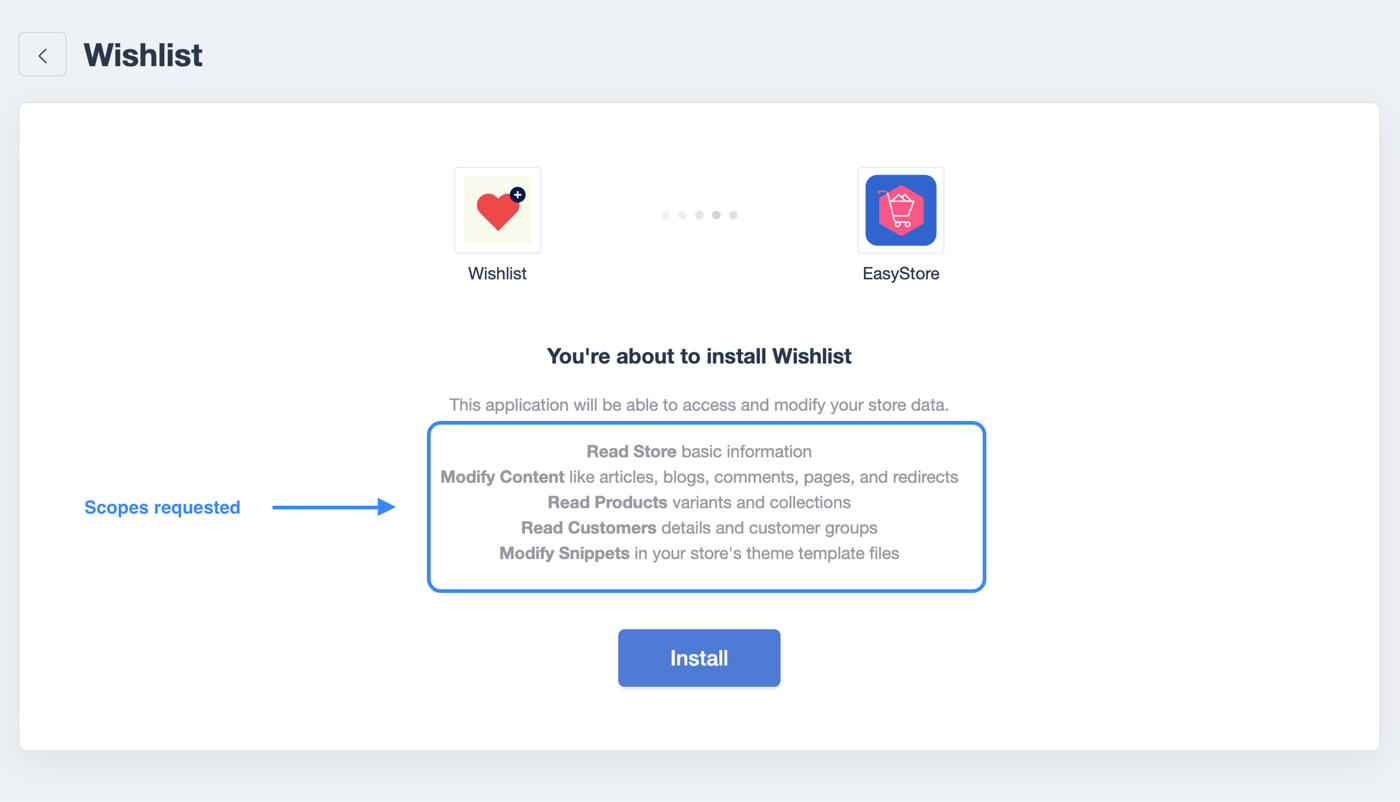
- After the merchant authorizes, EasyStore redirects the merchant to the redirection URL from step 4 with a GET
request containing the query parameters below:
Query param Description shopThe online store hostname, which is also the unique identifier of the store. Example: example.easy.cohost_urlThe store's admin panel URL. hmacThe HMAC-SHA256 hash used to verify the authenticity of the request. timestampThe request's timestamp in Unix format. codeThe authorization code used to exchange for an access token. Valid for 5 minutes and can only be redeemed once. stateThe statevalue your app sent in step 4, returned unchanged. Present only if your app sent one. It is included in the HMAC calculation.You should verify the request's authenticity using the HMAC value. If your app sent a
state, also check that it matches the value you stored. - If the request is verified, call the Request access token API with the authorization code. Send the
body as JSON with the
Content-Type: application/jsonheader. Example:curl --request POST 'https://{shop}/api/3.0/oauth/access_token.json' \ --header 'Content-Type: application/json' \ --data '{ "code": "{authorization_code}", "client_id": "{client_id}", "client_secret": "{client_secret}" }' - If the code, Client ID and Client Secret are valid, the API responds with an access token that can be used to
call the respective API resources. Example:
{
    "access_token": "f85632530bf277ec9ac6f649fc327f17",
    "scope": "read_products,write_products"
}
Store the access token. It stays valid until the merchant uninstalls the app, or until you exchange a new code for the same store (see Changing scopes and tokens). Common errors:
Error message Reason Redeem timeout The authorization code is older than 5 minutes. Ask the merchant to install the app again. Code was already redeemed Each authorization code can only be exchanged once. Use the access token you stored the first time. Client ID and Secret not granted The client_idorclient_secretdoesn't match the app that issued the code.
- Insert a record for this new installation into your database, so you can identify the store in the future.
- Subscribe to the
app/uninstallwebhook, so your app knows when the merchant uninstalls it:curl --request POST 'https://{shop}/api/3.0/webhooks.json' \ --header 'EasyStore-Access-Token: {access_token}' \ --header 'Content-Type: application/json' \ --data '{ "webhook": { "topic": "app/uninstall", "url": "https://apps.yourapps.com/webhooks/app-uninstall" } }'No extra scope is needed to subscribe to webhooks. Each app has one webhook URL per topic, so calling this again for the same topic updates the URL.
- You can now make API calls to read or write the store's data using the access token.
Calling the API
Send API requests to the store's shop hostname, with the access token in the
EasyStore-Access-Token header:
curl 'https://{shop}/api/3.0/orders.json' \
--header 'EasyStore-Access-Token: {access_token}'
- Base URL:
https://{shop}/api/3.0/for most resources. Newer resources such as inventory levels usehttps://{shop}/api/4.0/; see API versions. - Authentication: the
EasyStore-Access-Tokenheader on every request - Permissions: the token can only access the scopes the merchant granted during installation
- Limits: see API call limit and Response status codes
Not sure where to start? Popular APIs explains the most used APIs (products, orders, inventory, customers and online store customisation). The full list of endpoints is in the API 3.0 and API 4.0 references.
Changing scopes and tokens
To ask an installed store for different scopes, send the merchant through installation again: redirect them to
{host_url}/oauth/authorize with the full list of scopes you now need. The list
replaces the old one, it isn't added to it. After the merchant approves, exchange the new code as in
Part 2.
Each exchange issues a new access token, and the store's previous token stops working. Save the new token straight away and use it for all later calls.
🔒 Token or secret leaked? If a store's access token leaks, send that merchant through installation again as above. The new code gives a new token and the leaked one stops working. The Client secret can't be changed in the Partner Dashboard, so if it leaks, email dev@easystore.co.
App uninstallation
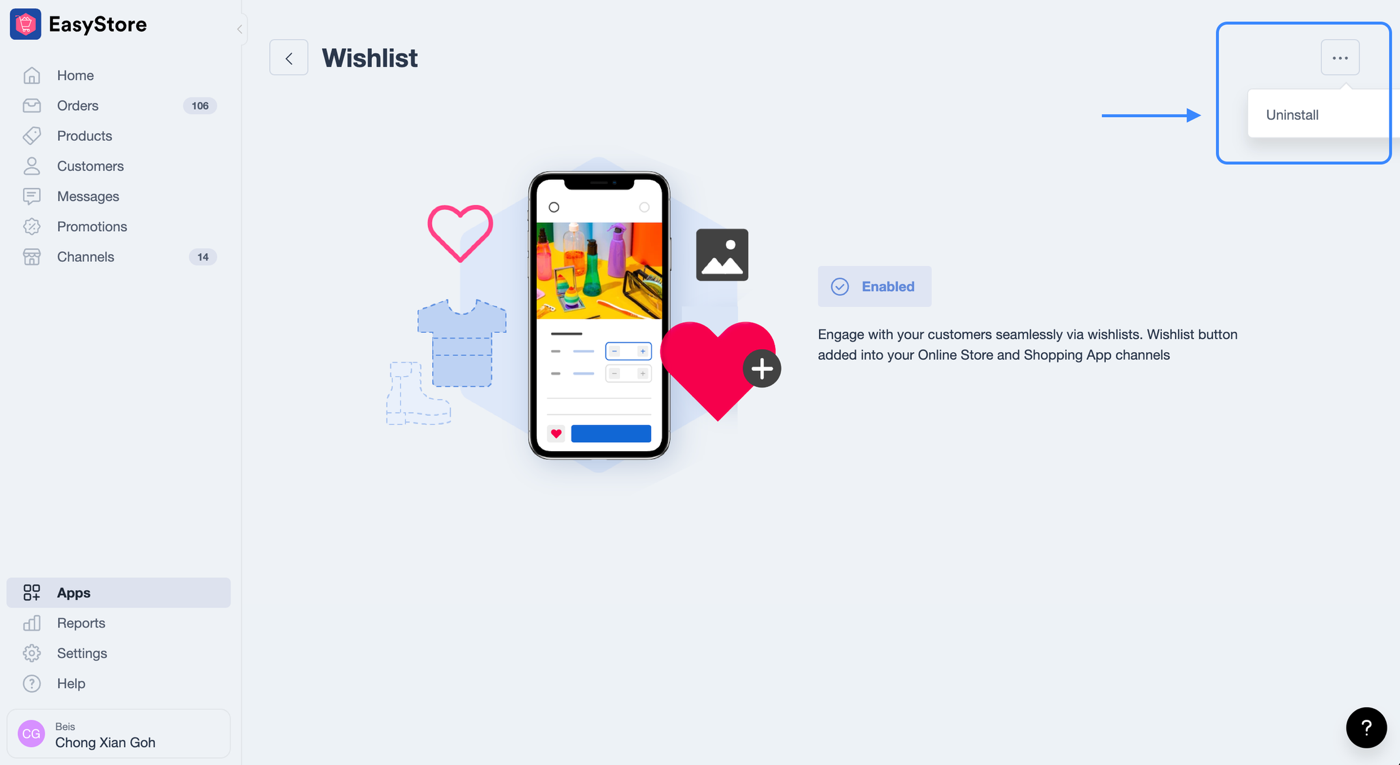
Merchants can uninstall an EasyStore App in the admin panel. Your app should subscribe to the
app/uninstall webhook using the Webhooks API during the app installation
process.
After the app is uninstalled from the store, the access token issued to the app for that store is revoked. Subscribed webhooks, created script tags, created snippets and created admin links are removed as well.
┌──────────────────────────────────────────────────────────────────────────────┐
│                           App Uninstallation Flow                            │
└──────────────────────────────────────────────────────────────────────────────┘

 ┌────────────────┐    ┌────────────────┐    ┌────────────────┐
 │    Merchant    │    │   EasyStore    │    │    Your App    │
 │                │    │  Admin + API   │    │  Webhook URL   │
 └────────┬───────┘    └────────┬───────┘    └────────┬───────┘
          │                     │                     │
          │ 1. Click Uninstall  │                     │
          │────────────────────►│                     │
          │                     │ 2. POST             │
          │                     │    app/uninstall    │
          │                     │    {"success":true} │
          │                     │────────────────────►│
          │                     │                     │ 3. Verify the
          │                     │                     │    Easystore-Hmac-
          │                     │                     │    Sha256 header
          │                     │                     │ 4. Delete the store
          │                     │                     │    record by the
          │                     │                     │    Easystore-Shop-
          │                     │                     │    Domain header
          │                     │ 5. Remove the       │
          │                     │    app's webhooks,  │
          │                     │    script tags,     │
          │                     │    snippets and     │
          │                     │    admin links;     │
          │                     │    revoke the token │
          ▼                     ▼                     ▼
- The merchant requests to uninstall the app.
- EasyStore sends an
app/uninstallwebhook request to the subscribed webhook URL. It is sent immediately, before the app's webhooks, script tags and snippets are removed. The body is:{"success":true} - The app should verify the webhook request's authenticity.
- If the webhook request is verified, the app can delete the store's database record using the
Easystore-Shop-Domainheader, which is the unique identifier of the store.
⚠️ Note: the app/uninstall webhook is only sent while the app is enabled in the
store. If the merchant disables the app before uninstalling it, no webhook is sent, and API calls with the
revoked token fail. Treat a rejected access token as a sign that the app may have been uninstalled.
Disabled vs uninstalled
| Disabled | Uninstalled | |
|---|---|---|
| What the merchant did | Switched the app off in their admin panel, but kept it installed | Removed the app from the store |
| API calls | Fail with Permission denied. until the merchant enables the app again |
Fail with Permission denied. The token is revoked for good. |
| Your token | Works again, unchanged, once the app is enabled | Never works again. A reinstall gives a new token. |
Some EasyStore plans limit how many apps a store can have enabled at once, so a merchant may disable your app to make room for another.
Deleting store data
EasyStore doesn't send separate privacy or data-deletion webhooks. Use app/uninstall as your signal
to delete the store's data, and remove any customer data you no longer need.
That webhook isn't sent if the merchant disabled the app before uninstalling it, so don't rely on it alone. If
the store's token keeps failing with Permission denied. for longer than a retention period you choose
(for example 30 days), treat the app as uninstalled and delete the store's data. State that period in your privacy
policy.
How merchants interact with your app
Merchants access the apps module in the EasyStore admin panel. When they click into your app, one of two things happens:
- (Suggested) An embedded page of your App URL is shown inside the EasyStore admin panel. Learn more
- A new tab opens and redirects the merchant to your App URL. Learn more
Whether the app appears as an embedded UI or opens in a new tab depends on the Embedded in EasyStore Control Panel setting in the app details page.
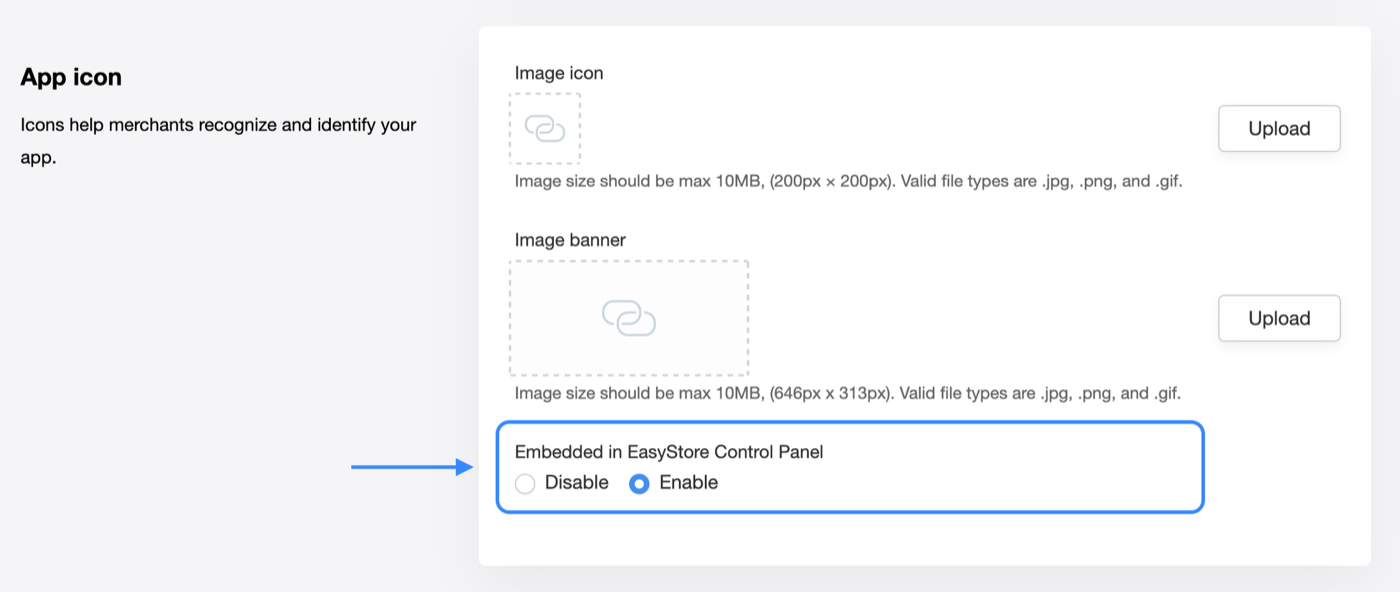
Embedded UI
This approach provides the best experience for merchants, because it is seamless and they can manage the service inside the EasyStore admin panel.
EasyStore embeds the App URL set up in the app details page into the EasyStore admin panel using an iframe.
Every time the merchant opens your app, the App URL is loaded with a freshly signed shop,
host_url, timestamp and hmac, the same as in installation step 2. Verify the HMAC on each load to identify the store. Because your
page runs inside an iframe on the EasyStore admin domain, make sure it allows being framed (for example, don't
send X-Frame-Options: DENY). Any cookies it relies on need SameSite=None; Secure.
Keeping the merchant signed in. Only the App URL that EasyStore loads carries an
hmac. Links and forms inside your page don't. When it verifies, start your own session for that shop, so later clicks and form
submissions inside the iframe are tied to the right store. Some browsers block cookies inside iframes, so a cookie
alone may not be enough. A common approach is to issue your own short-lived signed session token and send it with
each request from your page, for example in a header or a hidden form field. Never trust a shop value
that comes from the browser without that check.
┌──────── EasyStore Admin Panel ────────┐
┌────────────────┐ │ │
│ Your App │ │ ┌─────────────────────────────────┐ │ ┌──────────┐
│ │ ──►│ │ iframe loads your App URL │◄─┼─── │ Merchant │
└────────────────┘ │ │ ?shop=...&host_url=... │ │ └──────────┘
App URL │ │ ×tamp=...&hmac=... │ │ interacts
│ └─────────────────────────────────┘ │
└───────────────────────────────────────┘
Non-embedded UI
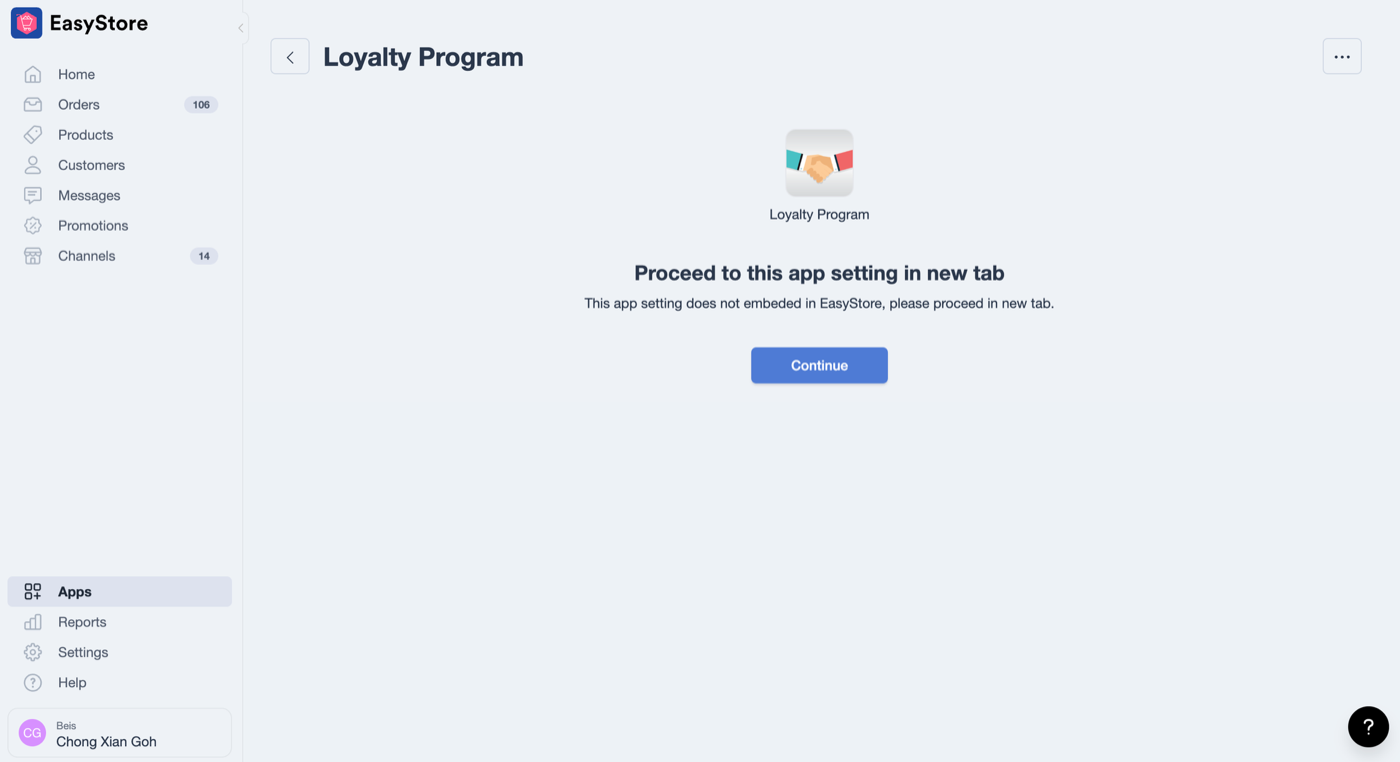
If the Embedded in EasyStore Control Panel option is disabled, the merchant is shown a page like the one below. When the merchant clicks Continue, a new browser tab opens the App URL.
Request HMAC verification
Every request from EasyStore contains an hmac parameter. Use this HMAC-SHA256 hash to verify that the
request is valid and comes from EasyStore.
To verify it:
- Retrieve the query parameters from the request. Use every parameter EasyStore sends, such as
codeandstateon the installation callback, not only the ones shown here. Leave out any query parameters you put in your ownredirect_uri: EasyStore doesn't sign them. (Thehmacvalues in this walkthrough are illustrative. To check your code, use the test value below.){ "hmac": "665104118c1631a6529f1673b6224c4c0927aefe04b84dbba23d16828dc2f105", "host_url": "https://admin.easystore.co", "shop": "example.easy.co", "timestamp": 1696689587 } - Remove the
hmacparameter.{ "host_url": "https://admin.easystore.co", "shop": "example.easy.co", "timestamp": 1696689587 } - Sort the parameters by key in ascending order, because the key order affects the generated HMAC.
Before:
{ "shop": "example.easy.co", "host_url": "https://admin.easystore.co", "timestamp": 1696689587 }After:
{ "host_url": "https://admin.easystore.co", "shop": "example.easy.co", "timestamp": 1696689587 } - Convert the sorted parameters back to a query string.
host_url=https://admin.easystore.co&shop=example.easy.co×tamp=1696689587
- Generate an HMAC-SHA256 value from the query string using your app's Client Secret as the key.
- Compare the generated value with the
hmacquery parameter. If both values are the same, the request is valid and was sent by EasyStore.
Test your implementation
With the Client secret my_client_secret, the query string
host_url=https://admin.easystore.co&shop=example.easy.co×tamp=1696689587 must produce this
HMAC:
623daafa2774b000feb2329fe2cf0d6d458be229c274347453fa1bd089cd770d
💡 Tip: build the string from the decoded values, as shown above. Don't
percent-encode the URLs inside it. Also reject requests whose timestamp is too old (for example,
older than a few minutes) to prevent replays.
PHP example
$data = $request->query();

$hmac1 = $data['hmac'];
unset($data['hmac']);

// Remove query params from your own redirect_uri (for example, ?source=partner). EasyStore doesn't sign them.
$data = array_diff_key($data, array_flip(['source']));
ksort($data);

$data = urldecode(http_build_query($data));
$hmac2 = hash_hmac('sha256', $data, env('CLIENT_SECRET'));

$isValid = hash_equals($hmac1, $hmac2);
Ruby on Rails example
data = request.query_parameters

hmac1 = data.delete(:hmac)

# Remove query params from your own redirect_uri (for example, ?source=partner). EasyStore doesn't sign them.
data = data.except('source')
data = data.sort.to_h
data = CGI.unescape(data.to_query)

digest = OpenSSL::Digest.new('sha256')
hmac2 = OpenSSL::HMAC.hexdigest(digest, ENV["CLIENT_SECRET"], data)

is_valid = ActiveSupport::SecurityUtils.secure_compare(hmac1, hmac2)
Webhook HMAC verification
A webhook is a POST request sent from EasyStore to the
subscribed webhook URL when certain events are triggered. Every webhook request from EasyStore contains an
Easystore-Hmac-Sha256 header. Use this HMAC-SHA256 hash to verify that the webhook request is valid and
comes from EasyStore.
The key is your app's Client secret. For a custom app, use its App secret, which plays the same role.
Example headers (the hmac value is illustrative):
{
  "Easystore-Topic": "app/uninstall",
  "Easystore-Shop-Domain": "example.easy.co",
  "Easystore-Hmac-Sha256": "ff3ebb56faa3471e630d5eb3fe6e2217880e7ee5dcc920da493bcc4164b9a0c1",
  "Content-Type": "application/json"
}
To verify it:
- Retrieve the raw request body as a string.
- Generate an HMAC-SHA256 value from the string using your app's Client Secret as the key.
- Compare the generated value with the
Easystore-Hmac-Sha256header. If both values are the same, the webhook request is valid and was sent by EasyStore.
Test your implementation
With the Client secret my_client_secret, the raw body {"success":true} must produce
this HMAC:
e8ec6d75a6236d1ac825d16ffc16ff5570d1cd6900747041dc9c51fc4e6bfcef
💡 Tip: compute the HMAC over the raw body exactly as received. Parsing the JSON and re-encoding it can change the bytes and break the check.
PHP example
$hmac1 = $request->header('Easystore-Hmac-Sha256');

$data = file_get_contents('php://input');
$hmac2 = hash_hmac('sha256', $data, env('CLIENT_SECRET'));

$isValid = hash_equals($hmac1, $hmac2);
Functionality building
📖 See Popular APIs for what the products, orders, inventory, customers and online store APIs can do, with their key endpoints.
You can provide additional functionality to the store. The EasyStore API lets you build functionalities including, but not limited to:
- Enrich the online store with snippets and script tags
- Sync products, customers and orders data between EasyStore and an external platform
- Fulfillment delivery status updates
- Automation triggered by EasyStore webhooks
For logistic integrations, see the specialised Logistic Apps
guide.
For payment integrations, contact dev@easystore.co for the payment integration guide.
Before you go live
Test the full flow on a development store:
- A fresh install reaches your Redirection URL and stores the access token
- Opening the app again (already installed) shows your UI without reinstalling
- Requests with a wrong
hmac, an oldtimestampor ashopnot ending in.easy.coare rejected - API calls work with the stored token and only use the scopes you requested
- Uninstalling sends
app/uninstall, and your app cleans up the store's data - Reinstalling after an uninstall works and gets a new access token